


Set up your new Android. It’s easier than ever.
The switching process got an upgrade to help you get set up in just a few steps. Confidently bring over everything you love — from photos, contacts, passwords, messages, and more.
How to transfer your data.
The upgraded method is available on select Google Pixel and Samsung devices with more coming soon. The classic method can be used on other Android phones. Check supported devices
Use the classic method.

Prepare your devices.

Select Android setup method.

Select the data you want to transfer from your iPhone® to Android.

Complete iPhone® to Android data transfer.

Update message settings.

Use the upgraded method.

Prepare your devices.

Pair your devices.

Choose data to copy.

Transfer an eSIM or set up a new one.

Transfer WhatsApp messages.
The go-tos you count on and a few new favorites.
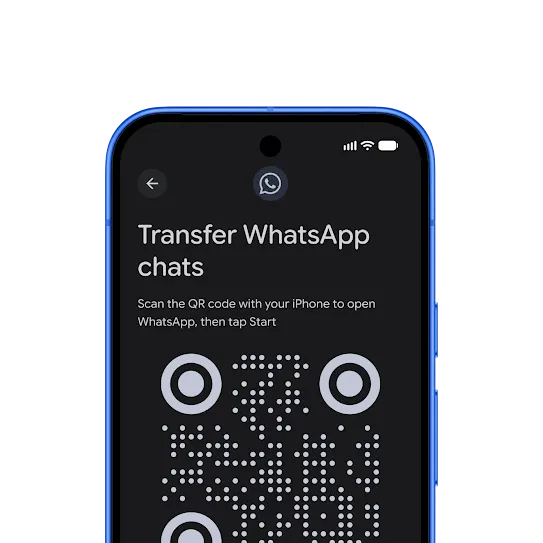
Never miss a beat with your WhatsApp chats.
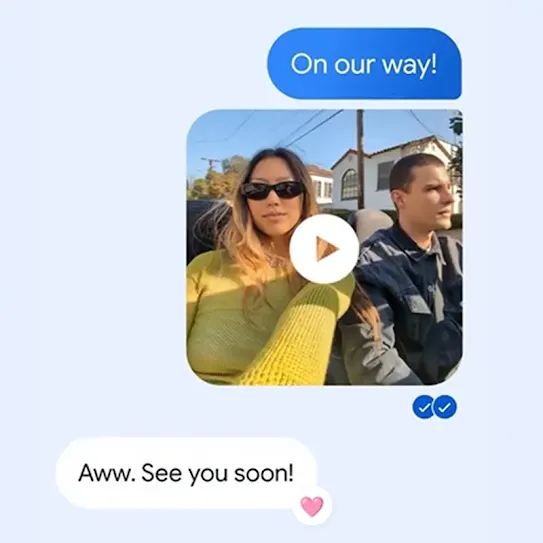
Stay connected with iPhone® friends.
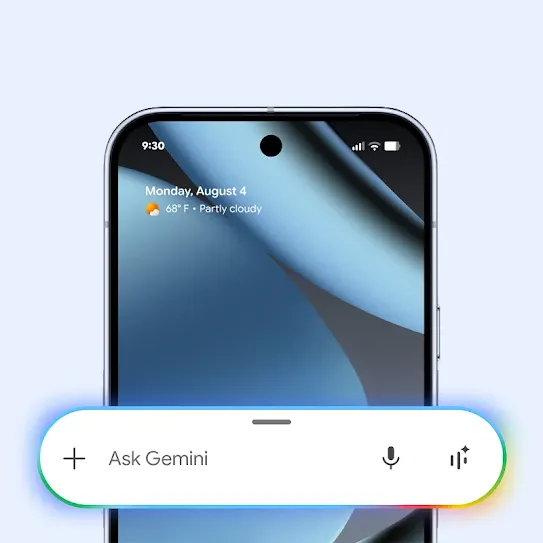
Your AI assistant is only a press away.
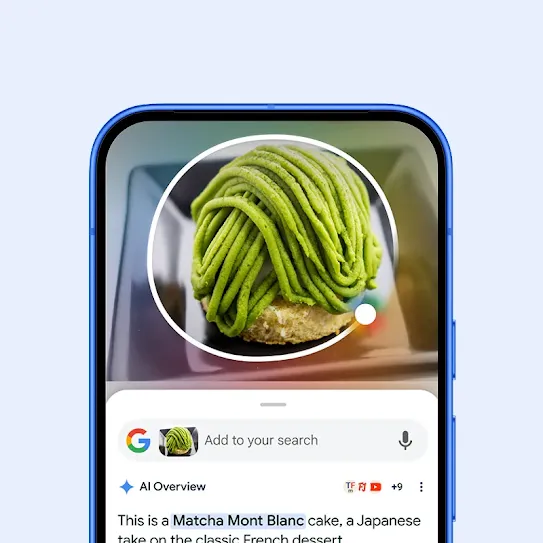
A smarter way to search.
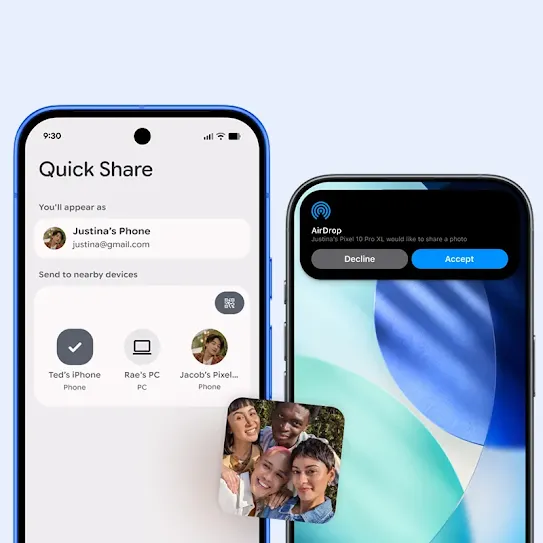
AirDrop® 🤝 Quick Share.
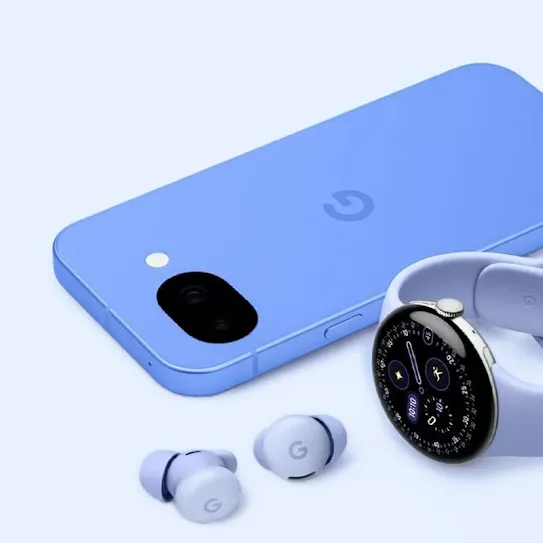
Keep your accessories.
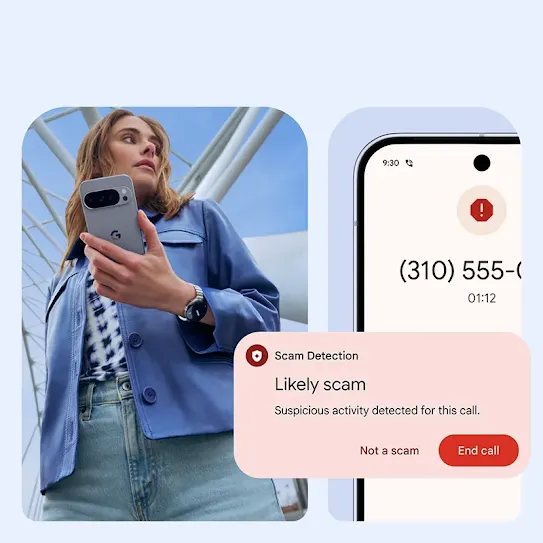
Secure. As always.
Have questions?
Supported data varies depending on your devices and the transfer method used. The upgraded method supports even more data types. See the Help Center for full details.
|
Classic (Wi-Fi) |
Classic (cable) |
Upgraded (Wi-Fi) |
|
|---|---|---|---|
|
App data App data requires developers to utilize APIs made available by Google and Apple |
❌ |
❌ |
✅ |
|
Call history |
❌ |
❌ |
✅ |
|
Google Account |
❌ |
❌ |
✅ |
|
Files and folders |
❌ |
❌ |
✅ |
|
eSIM Select carriers. |
❌ |
❌ |
✅ |
|
Passwords & Passkeys |
❌ |
❌ |
✅ |
|
Wi-Fi Networks |
❌ |
❌ |
✅ |
|
Calendars |
✅ |
✅ |
✅ |
|
Contacts |
✅ |
✅ |
✅ |
|
Photos and videos |
✅ |
✅ |
✅ |
|
Accessibility Settings |
❌ |
✅ |
✅ |
|
Messages |
❌ |
✅ |
✅ |
|
Apps Apps available at no charge available on Google Play will transfer. To transfer paid subscriptions, contact the developer. |
❌ |
✅ |
✅ |
|
Music |
❌ |
✅ |
✅ |
|
Downloaded files |
❌ |
✅ |
✅ |
|
Home screen layout |
❌ |
✅ |
✅ |
|
Alarms |
❌ |
✅ |
✅ |
|
Notes |
❌ |
✅ |
✅ |
|
Voice memos |
❌ |
✅ |
✅ |
|
Wallpapers (custom photo) |
❌ |
✅ |
✅ |
|
WhatsApp history *Upgraded flow requires transfer separately after setup |
❌ |
✅ |
✅* |
The iOS-to-Android transfer process has been upgraded so your eSIM, Google Account, passwords, photos, messages, contacts and more can now migrate wirelessly or with a cable from your iPhone® to your new Android device. This is coming soon to select Samsung Galaxy and Google Pixel devices.
The upgraded switch method is available on select devices running Android 17, and will be rolling to more devices soon. For more information on device compatibility, see here.
If you use Google Password Manager or a third-party app, your passwords will work seamlessly on Android. If you use Apple Passwords, the upgraded switch method will automatically transfer them to Google Password Manager, whereas the classic switching method will guide you through a few quick manual steps. Learn more here.
Most free apps will move over automatically when you transfer your data. For purchased apps on your iPhone®, we recommend contacting the app developer.
Your existing subscriptions will continue to work, but your billing will still be managed the way it is today — either via the app developer or the App Store.
If you are using the upgraded switch method, WhatsApp data is transferred separately after the initial setup. Learn more here
If you are using the classic switch method, you will have the opportunity to transfer your WhatsApp chats when you transfer your data during setup. You will need to use a cable to connect your iPhone® to your new Android and follow the on screen instructions. Learn more here.
If you previously backed up data with Google One, you can restore your content, data and settings without your old device. During setup, skip “set up using another device” and choose to restore from your backup.
Make sure to connect to Wi-Fi and sign into your Google account during setup to select available backups.
You can also transfer iCloud data and photos by visiting privacy.apple.com.
You can request a copy of your iCloud photos and videos to transfer to Google Photos. Visit privacy.apple.com to start the process. Request to transfer a copy of your data and sign in to your Google Account.
Yes, you can transfer data after setup. On your new Android go to Settings > Accounts & Backup > Android Switch. If you’re on a Samsung, go to Settings > Accounts & Backup > Smart Switch. Other devices may require their own transfer apps. Learn more here
If you have the upgraded switch method, your eSIM will automatically transfer during device setup.
If you have the classic method, wait until after setup to begin the transfer in Settings on your new Android phone.
Note that while eSIM transfer is broadly available, it is carrier-dependent. If your carrier doesn't support automatic transfer, please contact them for support.
Ready to move on from your iPhone®?
See the ways Android keeps getting better.
Sign up to receive tailored communications from Android with news, offers, events, and more.